Apps & Resources
We do not earn commission from any of these apps or recommendations. We try to update this list periodically with new tips/tricks and technology.
-
Overall TIPS
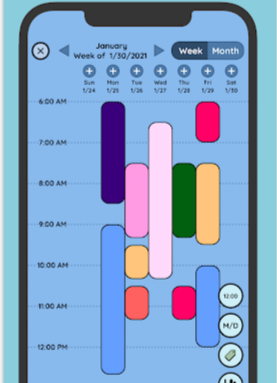
Try color coding your calendar by class/activity.
Add self-care to your calendars and routine.
Subscribe to external calendars so that you only have to use one app (preferably the calendar built into your phone).
If you feel overwhelmed looking at multiple calendars, uncheck the visibility next to the ones you don’t need all of the time. Turn it back on once you finish processing what you really have coming up and can handle the additional noise.
Schedule time/reminders to check in with social friends, especially if you’re not good at remembering to reach out to people you care about. (Ex: Repeat every 8 weeks).
Try putting your phone in Grayscale so it isn’t as appealing. I finally tried it after reading about this suggestion for years, and I cut my screentime down by 1/3.
On iPhone, go to Settings.
Accessibility
Display & Text Size
Color Filters. Currently set to Off.
Select to bring up screen with colored pencils.
Turn on Color Filters
Choose Grayscale.
-
Beyond the obvious uses, some tips from how I really use Reminders (and similar basic apps) effectively for me:
Apple Reminders is my most used productivity tool, hands down, especially now that it seamlessly integrates with my iphone calendar, too. I can set multiple notification reminders for certain extremely important tasks as needed, on a schedule I can customize (for example, I can create one reminder for a test with multiple alarms/notifications: two weeks in advance, one week in advance, then two days before, the night before, and then when I need to leave to get there in time).
Reminders is an excellent place to set up all of your semester assignments even if only as a backup to the official Canvas or class page.
It’s easy to change due dates if they get moved, add details about test format directly in the reminder, break out subtasks with their own specific due dates, and set multiple notifications if needed.
It’s also easy to drag a particular task directly onto your calendar to schedule exactly when you’re going to work on it.
Can also create Sections in Reminders so you can organize by module or have 1 master schoolwork list.
Use Priority flags and Color Coding by class.
Use Tags to file certain reminders for different classes or assignments if it’s helpful for you to search or organize
You can share Reminders lists with accountability buddies to help you stay on track. I have done this many times with my college accountability clients who like to use Reminders for their schoolwork.
Create a Brain Dump list. I have one physical notebook as well as one digital list on my Reminders.
Anytime I think of a task I need to do (so often happens when I’m in the middle of something else), I immediately jot it down on my Brain Dump list so I can more quickly get back to my original task.
When I eventually have time, I can organize it elsewhere (maybe putting something on the calendar or on another dedicated list), or I may just go ahead and tackle the task at hand.
I’m also building the habit of spending 5 minutes about 30 minutes before I go to bed to check my brain dump list and add anything I can think of that might be swirling around in my brain.
Externalizing these tasks make them less overwhelming, and I can sleep better since my brain knows I put it somewhere so I’m less anxious about forgetting to remember it down the road (and yes, those verbs make sense to me and probably other neurodivergent people).
So I have one alarm to remind myself to take those 5 minutes to do check my Brain Dump list.
For some people, notifications have a critical peak utility after which they just become noise, and that peak happens differently for different people.
If you find yourself regularly dismissing notifications/timers, having trouble refocusing after the disruption of a notification, or are experiencing other drawbacks to having multiple pings or pop-ups, it’s probably time to manage your notifications.
Start by turning off all unnecessary notifications. Go to those apps (ex: News, social media) at certain intentional times rather than letting them rule your life every time someone you follow posts.
If they’re still overwhelming, make sure you decide if you want them to pop up (Banner) or only when you go to that app. Decide if you want a vibration or even sound reminder. For me, a ping will start to stress me out at the wrong moment!
If you’re like me, you might just want to set a few alarms. For example, I have a dedicated nightly alarm reminding me to log my tasks in my habit tracker each evening as I wind down.
Create a Productive Procrastination list: A list of tasks that are good to do but are medium to low priority. One ironic symptom of ADHD is needing a distraction in order to actually focus on a different task. So yes, we may study with music on, but we also may only get certain tasks done if we’re using them to actively avoid something else. Why not work with this brain feature and create a list of procrastination items - that still ultimately are good to get done?
Example of what’s on my list at the time of writing:
Water houseplants
Take out the recycling
Dust the ceiling fans
Move one thing that’s out of place (set to recurring)
Sort the mail
Hang up new picture frame
Create a Hyperfocus list: Like the other specific lists on here, I fill this one with specific tasks. For me, it’s a mix of creative tasks that I’d like to do when I have the time and energy to do them guilt-free and tasks that in general need a little more complex decision-making or overall effort to complete.
If you’re not using a Habit Tracker elsewhere, you can also use Reminders to at least write out your Morning and Evening routines, and perhaps even build routine lists based on energy level (as discussed below in the Habitify section)
Ask for help! Technology is always changing, and those who are good with tech are usually more than willing to show you how to use a new feature. I know now you can make a lot of automations and widgets to make apps even more usable, but I don’t necessarily always know how to do these without reading a tutorial, watching a YouTube video, or asking a friend or family member to show me how to set it up.
-
-
Bare Minimum: At least turn on ScreenTime to track your usage, even if you don’t set any restrictions for yourself.
Create customized Do Not Disturb settings. Work/Study modes help you delineate when you are intending on being productive and help you keep that intention.
When you minimize distractions during work mode, it’s easier to enter Flow State and harness the positive abilities associated with hyperfocus and neurodivergence.
That boost in productivity means you often spend less actual time working (win), and reduces your sense of anxiety (double win) when you’re ready to “sign off” from work mode. It’s not just the dopamine boost from having a productive day.
Even in neurotypical people, research shows that one distraction (even as small as a notification ping) can sometimes derail us for up to 23 minutes. I, for one, want my 23 minutes back.
Save your most restrictive Focus settings for when scheduling time for what author Cal Newport calls Deep Work - the tasks that need cognitive focus and contribute to our actual sense of productivity. I recommend starting off by blocking off 45 minute chunks at first as you build these habits, working up towards 60-90 minutes.
If you try to go into “monk mode” for hours at a time, you’re probably going to be unsuccessful, feel overly constrained, and thus resist using focus methods in general. Set yourself up for success in small bursts.
You’ll still need to schedule time for Shallow Work that can handle more distractions (like going through emails, repetitive tasks, scheduling meetings) . In fact, with executive dysfunction, it’s often easier to get these Shallow Work tasks done while we are watching tv, listening to music, or otherwise stimulate our nervous system.
If you want to read more on Deep/Shallow Work and Cal Newport’s implications for burnout, recovery, and productivity, check out one of his books or start with this article.
This equally applies to students and workers.
Built-In Basics
Focus/ScreenTime Apps
-
For when you’re serious about reducing your screen time or at least changing how you use it, whether overall or just with specific distracting apps.
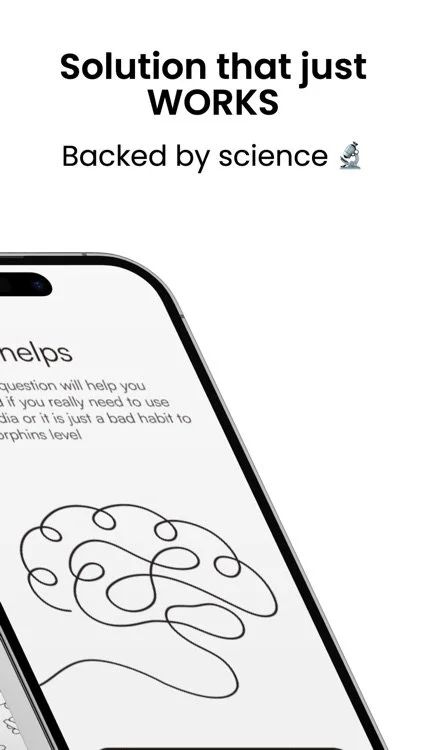
How I use it: Pick 1-2 apps that are my biggest time sucks (ex: News feed; TikTok; Instagram) to lock through the app. I need to actually want to reduce my time with these, because Naze will make it a little annoying to do so by design. Set up common reasons you use that app, noting if certain tasks are productive while others are more basic procrastination. The app makes it easy with defaults if you don’t want to customize. Now, when you want to unlock that app, you choose a reason and hold for a few seconds to unlock. The app will remind you of your current streak of non-distracted use of your phone so you really commit. Then you set an intentional time limit you want to be on the app - so you don’t accidentally waste endless hours without at least thinking about it.
Pros: Creates friction that really helps those with executive dysfunction change their habits. Makes you more intentional about how long you’re using your phone, and for what reasons. Feels less like a babysitter and more like a moment of self-reflection and intention; I feel the choices I’m making and feel in control. Really helps with giving yourself an offramp from a rabbit hole of endless scrolling with regular check-ins. Once you set it up, works any time you try to use one of your locked apps, not just when I open the Naze app. So, if I don’t trust my willpower, this extra backup protects my time and overall goal of reducing my screentime. Since it can only impact a few apps if you want, it doesn’t make it annoying to use my phone in general like some other screentime control apps, which makes it easier for me to stick with.
Cons: Can be annoying (by design) so you really need to be committed to changing the way you approach your screentime. Wish it had more customizable time limits when setting intentions to use a distracting app - sometimes I’m okay with scrolling for an hour, and multiple interruptions when I always intended to take that long can get on your nerves. Is paid so not worth it for everyone.
Similar apps: Opal; ScreenZen; Flora; Freedom; Refocus; OffScreen
If Naze still isn’t enough, you may need a physical solution like Brick or something similar to stick to your intended technology use.
-
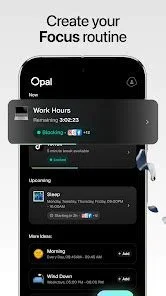
Opal’s unique strength is “Session Difficulty” feature with Normal, Timeout, and Deep Focus modes. Opal’s settings are even more robust than Naze, so you’re going to want to be serious about your screentime habits.
Timeout mode forces you to focus for longer and longer periods to unlock the Snooze button. Deep Focus can’t be ended early.
Tip: You can even turn on (and probably should) a setting prohibiting uninstalling the app while you are in a Deep Focus session.
One setup that might work is this author’s recommendation:
9 AM to 5 PM — Work Focus
8:30 PM to 8:30 AM — Sleepy Sleep
Both are Deep Focus sessions
Some notable distracting apps/websites that are blocked — YouTube, WhatsApp, LinkedIn, Instagram, TikTok, Twitter, and Reddit.
For a detailed review, read this article.
Has a 50% student discount for premium features like Deep Focus.
-
Features include forcing you to do exercises before opening your apps.
Free with no ads. with premium features available.
-
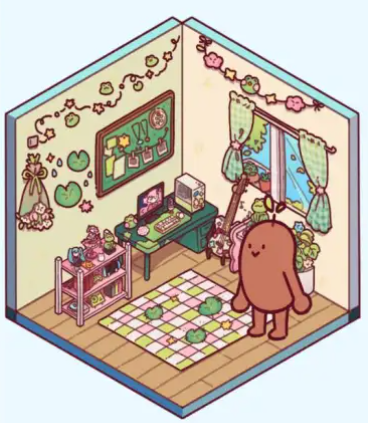
Launched with the help of Hank Green, my clients and I were all pretty excited to see some features that I’ve been looking for from other apps for years in Focus Friend. Really set up with neurodivergence in mind, and the aesthetics are adorable if you like that sort of thing. Has good in-app features including Focus timers and Break timers which make for easy implementation of Pomodoro-style timers.
Deep Focus Mode (in Pro mode) has similar features as Naze offers but without the full intentionality around purpose built in; however, a quick swipe up on your phone can still provide you with access to all of your unrestricted apps without disrupting your bean’s knitting. TLDR if you want to, you can sort of trick the app into thinking you’re focused if you haven’t been realistic about which apps you need to block. Know thyself, and if you know you’re the kind of person who might accidentally, a little bit, bypass the system (like I am), this app may not be as much help for you to reach your goals unless you’re serious about getting strict with yourself.
Cons: Be careful that you CAN use real money for in-app purchases on skins. Unless you’re actively in Deep Focus Mode, you won’t be restricted from using distracting apps, so keep that in mind. If you need a little more of a nudge to stay on track, you may need something “a little stronger” like Naze or Opal.
-
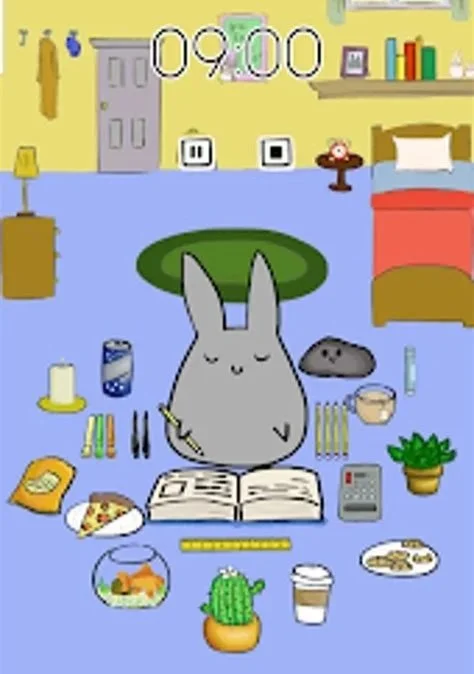
Similar aesthetics to FocusFriend with specific tools tailored to support students.
Includes several in-app features so you don’t get tempted to go to various other websites/apps (and may get distracted along the way): in-appTo-Do lists, in-app flashcards, built-in ambient music playlists, and study tips.
Honesty Mode and Challenge Modes.
Cons: Free version includes ads. I have not tried a paid version myself. Again, available in-app purchases can be an impulse buy for users. Particularly problematic is the ability to purchase additional bunny coins and carrots rather than earn them by sticking to your focus goals, thus having the ability to bypass the underlying purpose of the app to help you build focus streaks and accountability. Still, we are all our own keepers, but worth a warning for those who struggle with excessive spending and those types of temptations.
Has group study features as well.
-
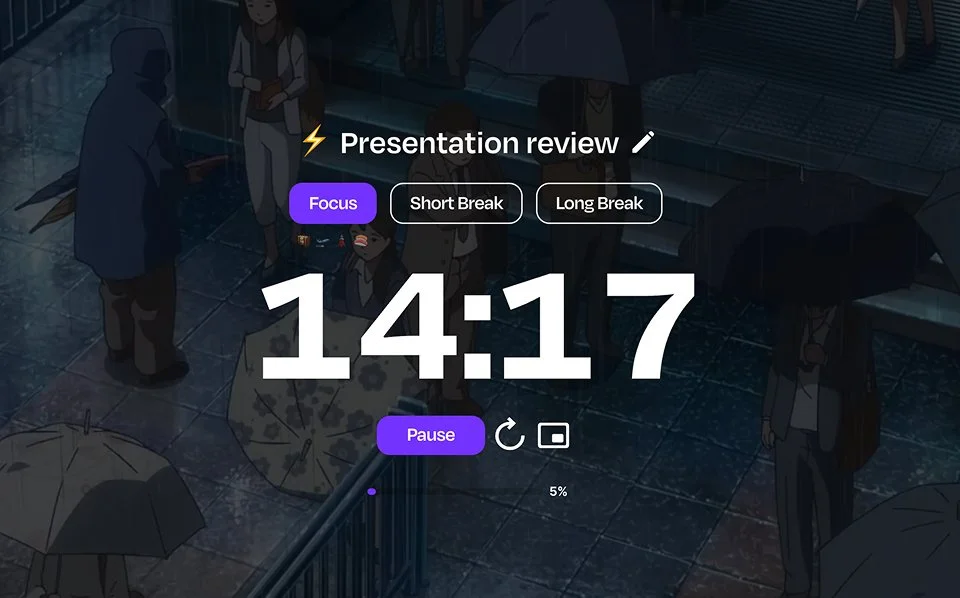
A free browser-based productivity dashboard with no ads that can be found here. Includes built-in customizable timers, music playlists, and aesthetic themes for your workplace dashboard.
Body Doubling Apps for Studying & Coworking
-
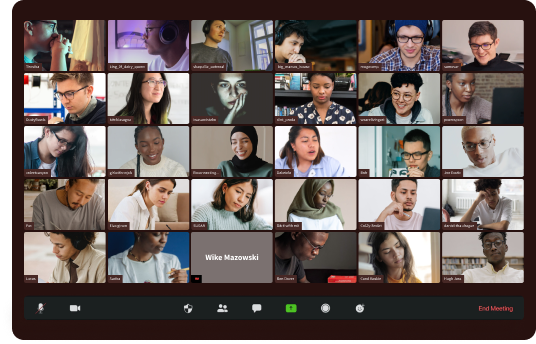
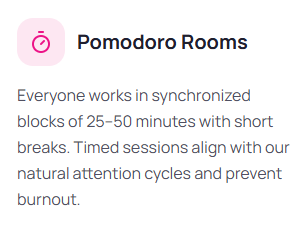
Visit CSW by clicking here. Truly Free Study with Me streams; customizable Pomodoro and Flowtime Study Timers; and Task Management tools. Goal Sharing in some study sessions to boost accountability. They even have whole rooms with synchronized Pomodoro timing.
Body doubling is one of the most effective methods to help you stay on task during study sessions. If you don’t have regular access to an in-person study group, join online study livestreams for free 24 hours/day with other people focusing on work or school.
Be sure to read any community rules or guidelines before you join! All public study rooms are moderated spaces designed for respectful, focused studying.
Public, private, and team sessions available with no subscription fees.
Chill, Study, and Work modes with different vibes for different levels of desired focus.
Turning on your camera is optional, but research does show it improves accountability and productivity.
Also has Workspaces that compete for free with commonly used apps like Monday, Asana, Notion (and others).
-
Similar to CSW virtual rooms. Also free to join many rooms. Access StudyStream by clicking here:
-
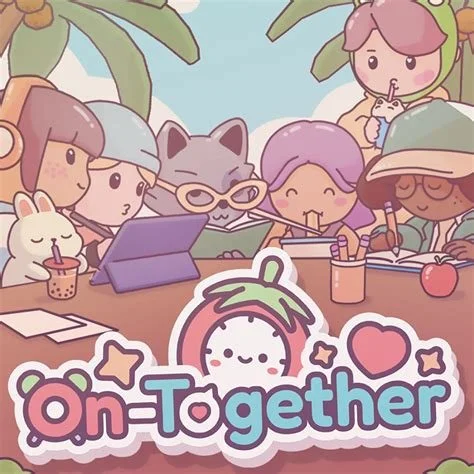
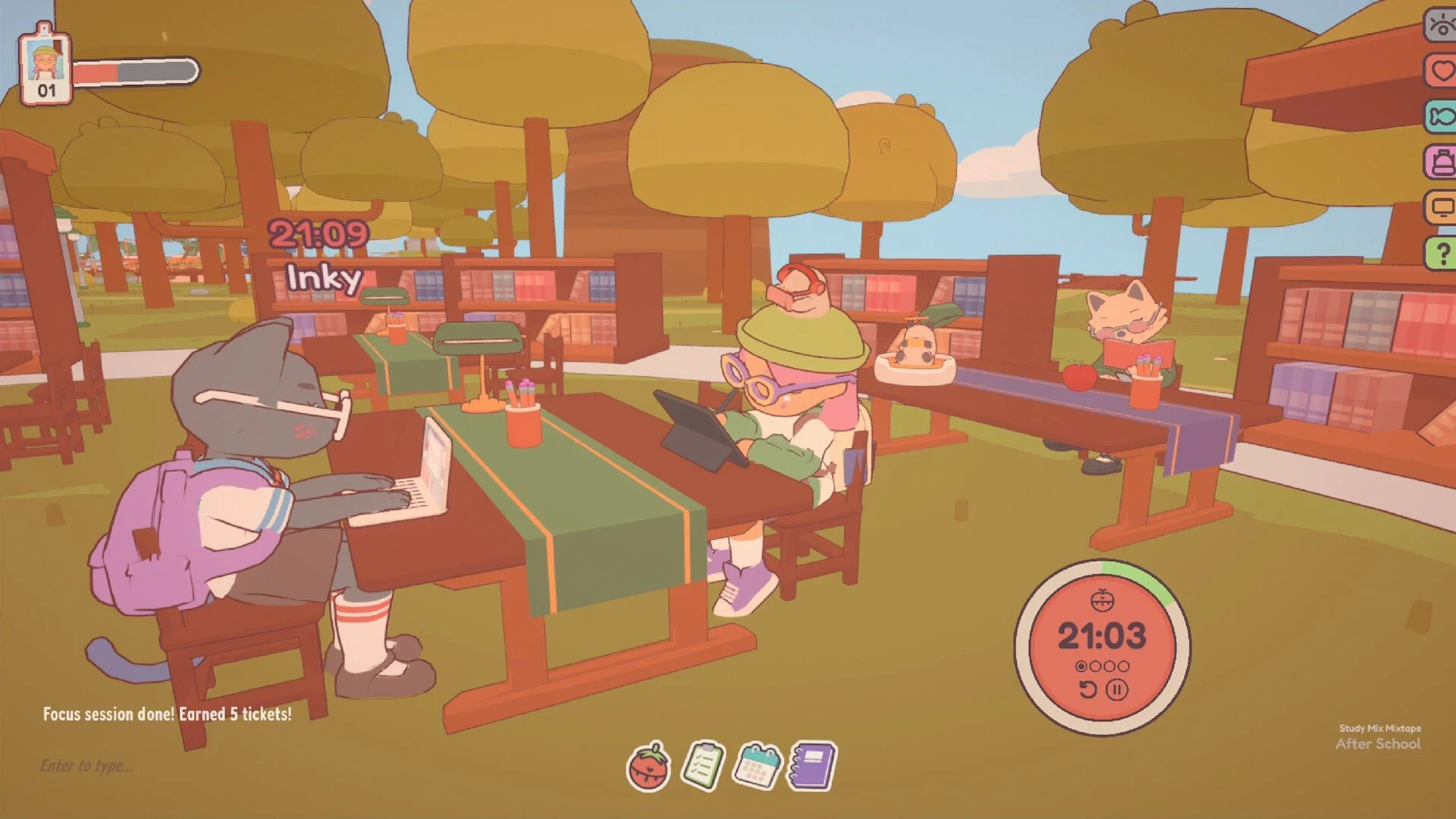
A virtual third space for coworking or studying with friends or strangers in an aesthetic cozy game available on Steam for approximately $6.99.
-
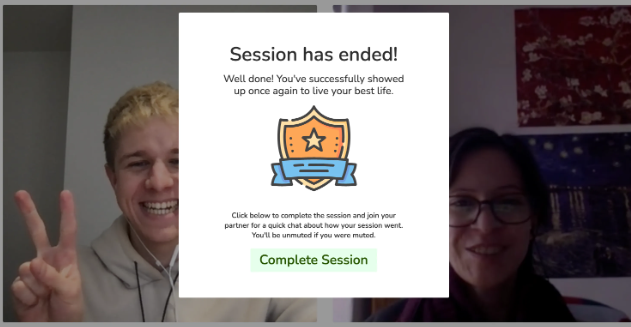
If the large virtual study rooms aren’t for you, you may prefer to be matched in 1-on-1 sessions at CoFocus. Free plan includes 3 50-minute cofocus sessions each week. See CoFocus by clicking here.
You will be matched with a partner, introduce yourself in the first minute, and then both get on with your 50 minute focus session. When the bell rings, you’ll take a brief moment to share what progress you made to keep you both accountable.
Again, the psychological benefit of social facilitation makes it more likely that you show up, and that you stay productive, when you book a cofocus session.
-
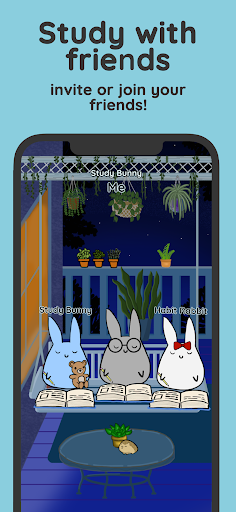
Study Bunny app has features where you can coordinate a focused study session with friends.
Habit Trackers - Sample of Some of Our Favorites
-
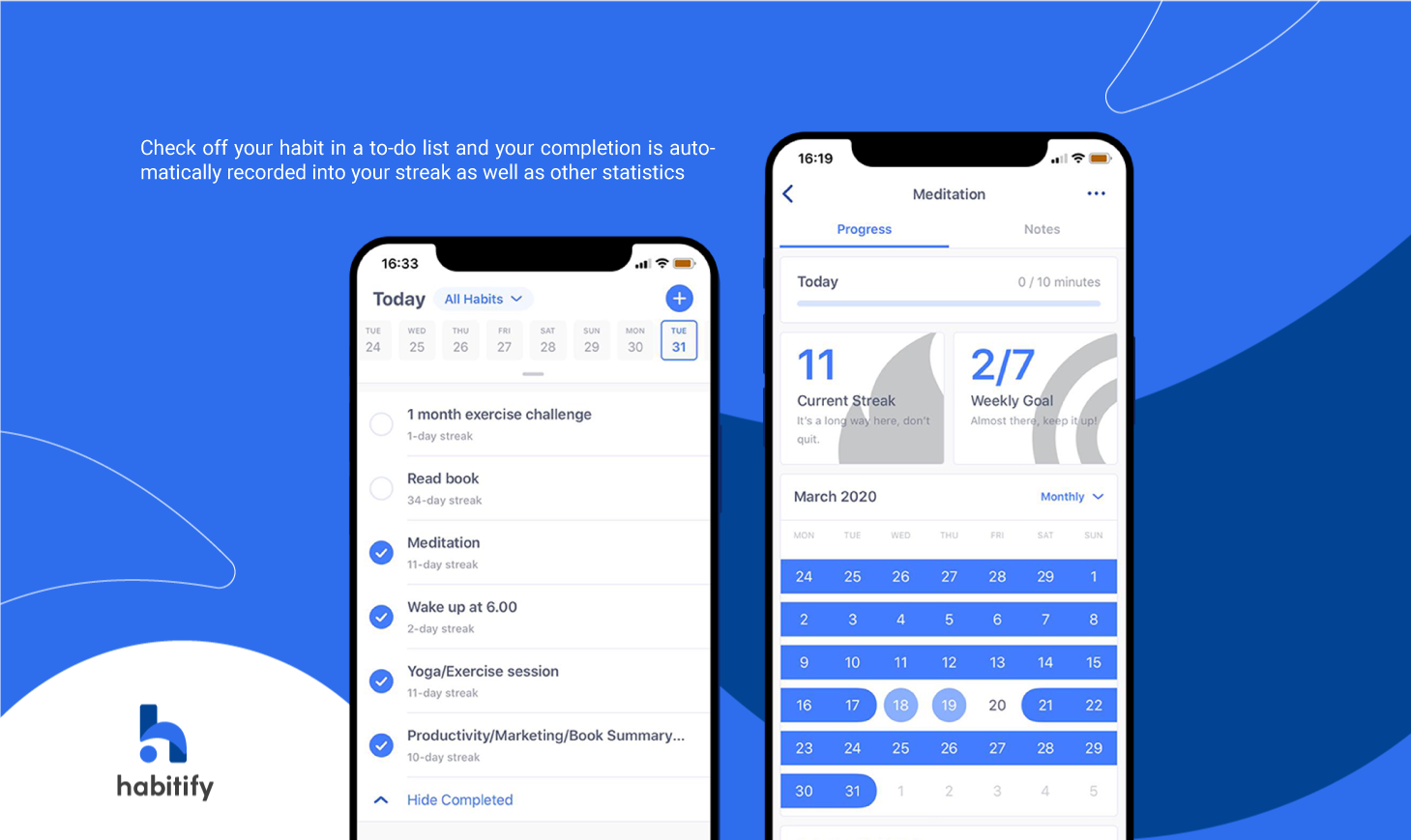
Habitify is a robust data-driven habit tracker that includes the ability to share habits across multiple routines as well as the ability to share and challenge friends for accountability buddy systems.
How I use it: I particularly find the paid version useful because you can create multiple lists to represent different routines. Yet I can create just one habit (ex: brush teeth) and add it to multiple lists so the data tracking is consistent. That way I can still see my actual performance streaks, which is one thing that helps me stay motivated. I try to log habits as I do them, but I also have a backup notification in the evenings to check the day’s effort off before I go to bed.
Many of my clients do best by considering their days and tasks according to energy level rather than specific time of day (although sometimes it is consistent) or day of the week. Habitify allows us to easily create routines that apply to different scenarios organized around this energy level system.
Personally I use these separate categories: Morning, Nighttime, Workout, Low Energy, Medium Energy, Extra Energy, Productive Procrastination (a tip from one of my other executive function lessons). I can effortlessly switch tabs and only be looking at the routine I’ve intentionally selected for that day - not getting overwhelmed by what I could have chosen instead.
I could do this with a simple Reminders app by creating separate lists there, too, but Habitify will actually track your habits so you can still see streaks and trends for accountability. Also, if you set it up correctly, it will track your same habits whether it’s a low energy, medium energy, or high energy day because you can add one task to multiple lists. So my low energy routine list has 5 must-do tasks at most representing the bare minimum I hope to do every single day. I won’t get overwhelmed by thoughts of “should be doing” once I’ve made this choice myself - seeing all the well-intended and aspirational goals I may set for myself for a “perfect” day. And on days where I feel I have more capacity, I can start ticking off some of my “hope to do” list with the same system.
With exercise, I personally get stuck because of an unwritten self-created rule: if I’m going to bother to exercise, I want really useful data tracked when I do so. Yet, with my ADHD, I have trouble sticking to actually using typical exercise tracking apps (even paid ones), especially because I like variety in my workouts but don’t want to enter the detailed data each and every time. No two workouts in a given week are exactly the same for me, so it makes it that much harder to track the kind of data that in turn motivates me to stick to exercise goals. It can be a really tricky cycle.
So I set Habitify up with each type of exercise I might choose from on any given workout with preset data that I create myself (ex: I know that if I do bicep curls, it’ll usually be with 25lb free weights for 3 sets of 12) and weekly or monthly goals for each type of exercise. If I want to do 50 squats each week, but don’t care how many sets it takes, I can just tap the amount from one session, and it adds towards the weekly goal.
So after the somewhat tedious initial setup, the easy push-of-a-button system lets me nearly automatically log my workout quickly and with little cognitive load, giving me a positive feedback loop to keep up my commitment to exercise and still feel the flexibility I need to keep me going on my exercise journey.
Pros: Can use the same tasks on multiple lists, being the easiest digital way I’ve found to set up routines by energy level, a recommendation I offer many of my neurodivergent clients. Some neurodivergent people really benefit from useful data tracking but struggle to implement the tracking system. Habitify is one option that may be a little easier for some to follow-through with.
Cons: Can take some hyperfocus to get it set up the way you’ll actually use it at first. It’s not as aesthetically pleasing as some people need (like Finch) but it’s not overwhelming either so it’s pretty clean, which I personally like. Like most habit tracking apps, you’ll likely need some kind of notification system to remind you to go into the app and log tasks as you do them.
-
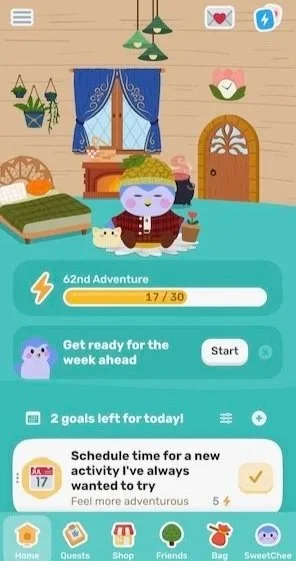
If the sound of a habit tracker that’s a glorified Tamigotchi with an even cuter aesthetic is your type of dopamine hit, then Finch may be the app for you. Has built-in dopamine systems like Daily Quests and special events to encourage you to use the app (and thus, complete your tasks).
How I use it: If a million notifications will just be too much noise for you to follow through, consider setting one reminder on your phone directly to log your Finch activity or using a Widget to make things simple.
I like to incorporate this into my nightly wind-down routine so I’m less likely to forget if I did certain tasks and still have time to do them before I go to bed. Not that I don’t have the occasional “was that yesterday or today”, but it works better than nothing for me. [I do this at the same time as my Brain Dump list.] Honestly I’ve personally switched my habit tracking away from Finch to Habitify (above), but for those who like it and their precious birbs, it’s a really great app.
Pros: Is adorable. Has built-in “Start Fresh” feature if you haven’t used it in a while (as opposed to a shame-inducing message) and need to reset. Helps you address habits and motivation struggles with intention. Has Buddy Up feature to build habits with friends for accountability. Easy Widget to boost consistency of use. Send your birb on “Adventures” when you’ve built enough energy for him. Has some built-in novelty which can also be useful for those with executive dysfunction. Also has robust self-care routines to help you get started and stay regulated.
Cons: Is paid and has in-app purchases, so make sure you’re self-aware about your impulsivity with spending. Unless you’re the kind of person who really responds to each and every notification right then, you can easily turn off notifications…. and just also forget you even have the app.
Not all systems work for all people, so if this isn’t your thing, then don’t try to force it. If it’s a little bit your thing, it’s an app I do keep coming back to after a reset. When you have executive function deficits, all or nothing approaches are a recipe for quitting, so getting comfortable with regular resets when you break a streak is critical. Finch makes it a little easier to keep going than some other systems.
-
Full disclosure - I haven’t used this one personally, but I have clients who do.
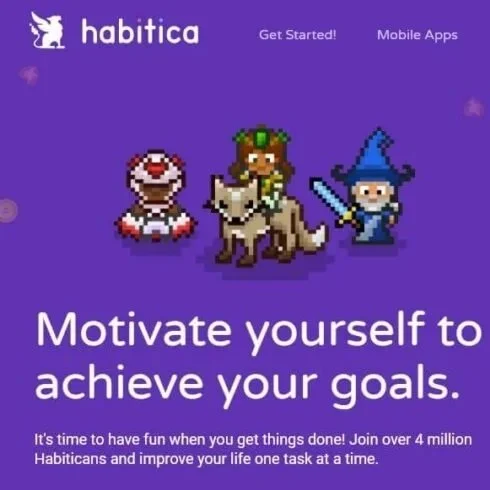
A habit tracker that’s great for gamers who are trying to translate their dailies into their actual life. Similar to Finch but with 8-bit videogame aesthetics. Their slogan is “gamify your life.”
Is it annoying that I can make myself do tedious chores in all of my cozy games but have to really push myself when I really need them done myself in my real life? Yes. Would Habitica help me view my real chores more like my cozy games? Worth a try.
-
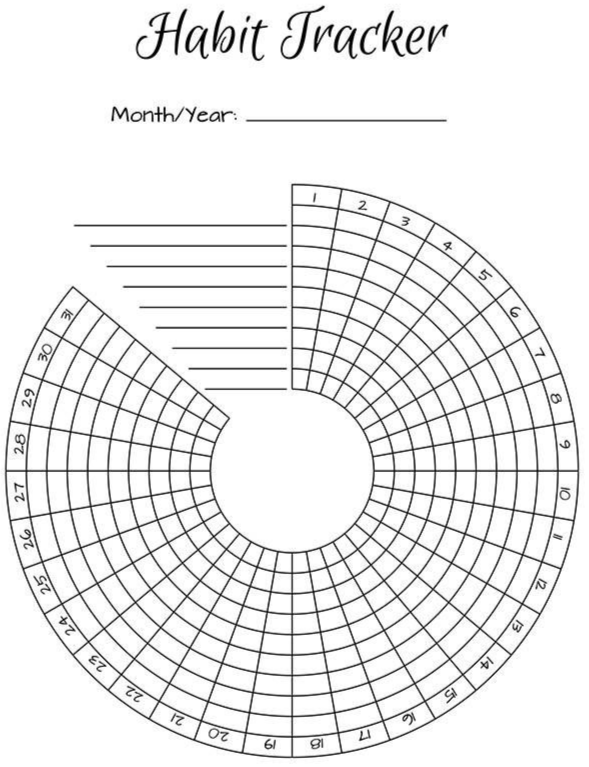
We have several trackers up at the Center to try out for yourself. Place the visual tracker somewhere you cannot avoid it - bathroom mirror, bedroom door, computer monitor, etc.
Study/Notetaking/Workspace Tools
-
Genio, available by clicking here, is the most commonly used notetaking accommodation app provided by colleges and universities right now.
Many schools will pay for a license to this paid app with many useful features as it has essentially replaced peer notetakers at most universities. (If your school doesn’t offer Genio, Genio also offers student discount pricing, or your university may offer an app with similar features).
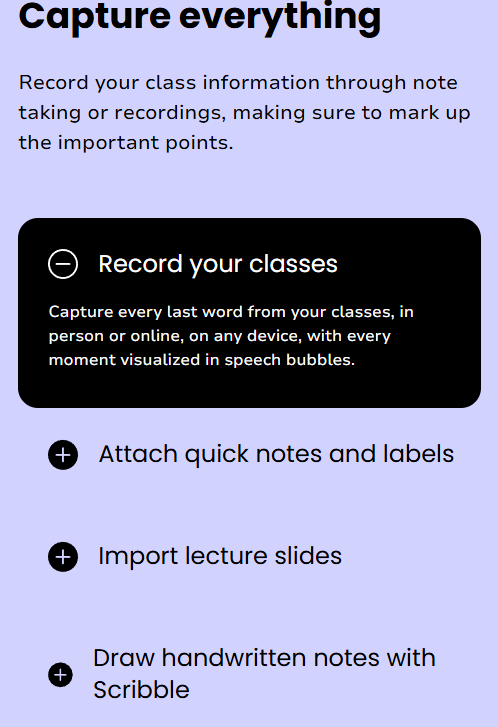
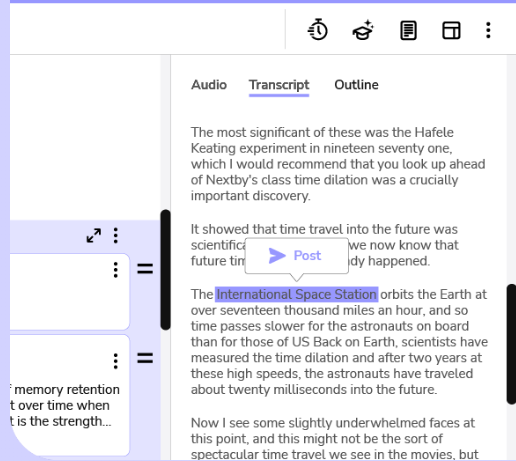
With the permission to record as an accommodation, students can turn on the recording feature in the app during lectures. Genio will convert the audio recording into a searchable transcript. IF your professor does not allow recordings yet your accommodations do, even after you’ve had a polite conversation with your professor about your accommodations at the start of the semester, let your accessibility advisor know so they can help you self-advocate for this extremely useful tool.
How I recommend people use it at first: as a backup so if you get lost writing notes, you can note down the time in your notes to help you go back and search the transcript for where you got behind. Or if you didn’t realize your notes got thin as you spaced out, you can search the transcript by keyword, and find the details around the Battle of Lexington when your notes stopped at “Battle Lex” and a blank page. If you know you can’t really listen if you’re too stressed to take notes in the moment, then you can engage as an active participant in class knowing you can go back and rewrite/process the details from class on your own time without the pressure.
If you think you’ll never use it, still just click Record. You may be surprised at its utility, and it literally is just one push of a button to have a very effective backup.
If you’re a really motivated user, you can also go into the transcript and add your own annotations including links to visuals, slides, external websites, explanatory videos, and more that relate to that part of the course topic and create multimedia notes that really synthesize your knowledge (and thus make active studying that much more accessible). That also allows you to put everything in one place, reducing your extra admin before beginning a study session.
You can also use the notes transcript to easily create tasks for yourself (like read this article). The app has built in focus timers as well.
I recommend starting with just one new tool/feature at a time, after you begin consistently using the audio recording feature.
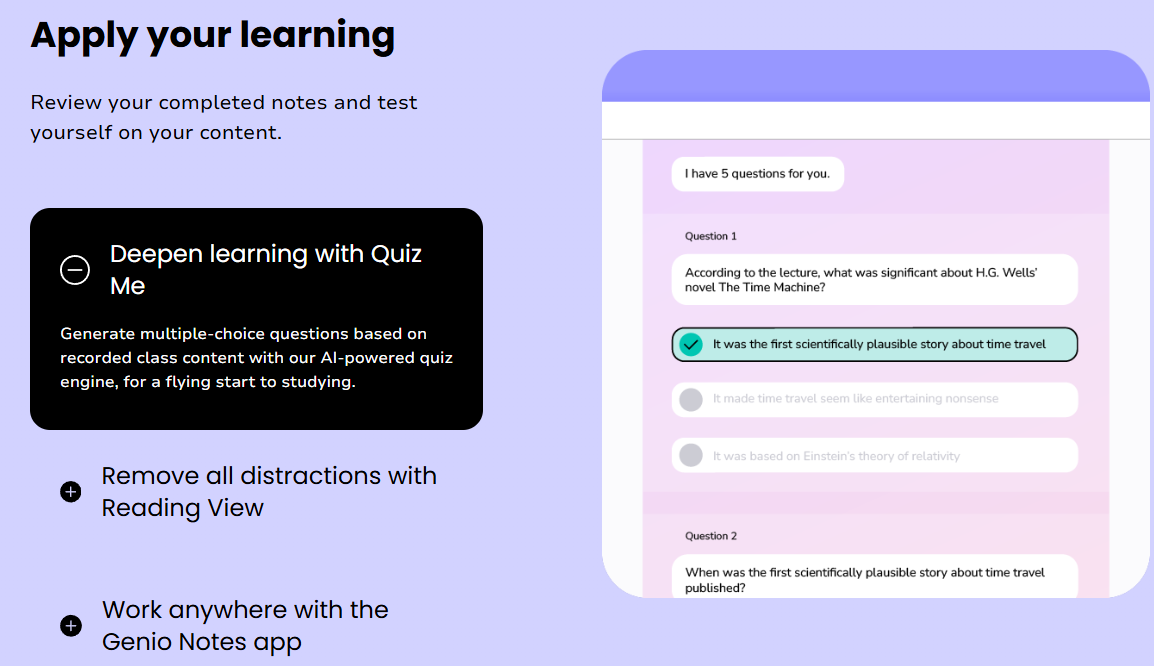
Genio now also has added features using AI tools that can create your own study/review questions as you review material. Perfect for spaced repetition study methods!
Similar: CocoNotes
-
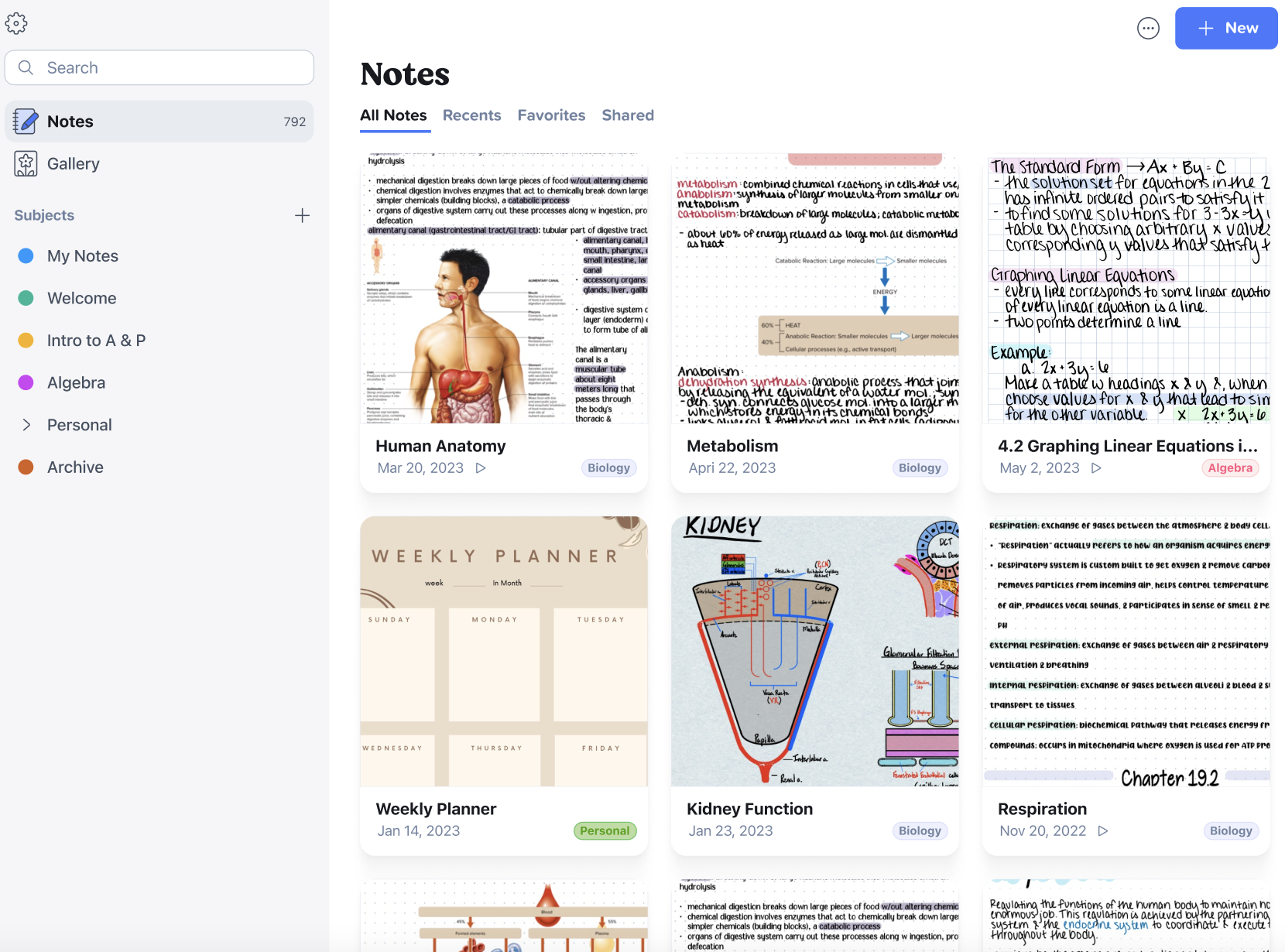
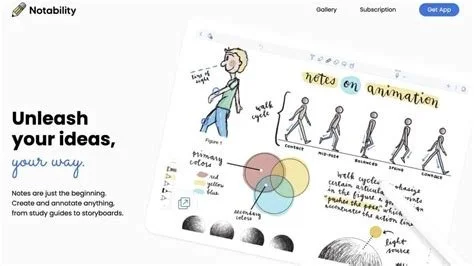
My work life cannot operate without Notability. I can organize materials from handwritten notes I create using my Apple Pencil and iPad with respect to specific clients or lesson plans. I can then save pdfs from other sources to those notebooks - organized by client or by topic.
So for example, I can have a student’s syllabus and assignment instructions all saved in one convenient location, along with notes they’ve sent me, screenshots they text me, handwritten session notes, productivity tools, habit trackers, weekly calendars, and any number of other useful files I may need in our individual sessions. If not for Notability, I’d spend a considerable amount of time in between sessions to organize what I need to effectively coach my individual clients.
For students, they can do much the same with their classroom materials. These days professors often have materials on the same subject on different class websites, not to mention class notes, outside readings, and lecture slides. Occasionally professors have established a really clean landing page for their students using the class website, but often it is a mess to navigate that takes up a lot of valuable time, especially if you struggle with executive function (ex: Now how do I get to the textbook annotating site?)
Organizing everything you need for a topic in one consistent place on your device can save a lot of cognitive load and help prevent overwhelm and anxiety. Notability is one tool that can make it a lot easier to do so.
Nearly endless templates for notebooks; Cornell notes; graphs paper; checklists; planners; study sessions; semester overviews, and so much more.
Other key features: Can draw/sketch in full color as well. Can audio record and have it sync up to your class notes as you take them. Syncs up with Google Drive; One Drive; iCloud; DropBox and more.
-
Some of my clients really benefit from using tablets that don’t have other distracting apps available.
One common brand is Remarkable, though I’m sure there are many out there now.
You may notice some popular apps not on this list, and it may be by our design.
Not that Monday, Notion, or Todoist aren’t useful for some, including some of my clients, but they need some upfront time put in to make them really usable for many. They also lack a super clean output, in my humble opinion.
I’ve tried to highlight options that generally match the aesthetic preferences, common needs, and ease of use for my clients in each category.
Reading Library
Not that we necessarily endorse every single aspect of each of these books (and aren’t part of our curriculum per se),
but here are some entries on our reading lists we think are worth a read, and maybe even a conversation. Some we haven’t even finished yet ourselves!
If you’re interested in borrowing one of our copies of any of these, please reach out.
Strong Female Character by Fern Brady
How to Be Human: An Autistic Man's Guide to Life (An Inspiring Memoir) by Jory Fleming
Autism Working: A Seven-stage Plan to Thriving at Work by Michelle Garnett & Tony Atwood
Welcome to AuDHD: How to Survive (and Thrive) as an Adult with Autism and ADHD by Megan Griffith
Coming August 2026: Too Sensitive: Rejection, Resilience, and the Science of Feeling Deeply by Dr. Sasha Hamdani
Furiously Happy by Jenny Lawson
The Autistic Burnout Workbook: Your Guide to Your Personal Recovery Plan (Self-Care for Autistic People) by Dr. Megan Anna Neff
Deep Work: Rules for Focused Success in a Distracted World by Cal Newport
How to Win at College by Cal Newport
So Good They Can’t Ignore You: Why Skills Trump Passion in the Quest for Work You Love by Cal Newport
And if you’re really nerdy like us, here are a few recent research studies we’ve been following:
Litman, A., Sauerwald, N., Green Snyder, L. et al. Decomposition of phenotypic heterogeneity in autism reveals underlying genetic programs. Nat Genet 57, 1611–1619 (2025). https://doi.org/10.1038/s41588-025-02224-z
On biologically distinct autism subtypes, in plain terms here: https://www.princeton.edu/news/2025/07/09/major-autism-study-uncovers-biologically-distinct-subtypes-paving-way-precision